

How to Sync Server Time in AlmaLinux: A Step-by-Step Guide
Sync Server Time in AlmaLinux – Keeping your server’s time synchronized is crucial for maintaining the accuracy of logs, scheduling tasks, and ensuring that time-based applications function correctly. AlmaLinux, a popular RHEL fork, offers several methods for synchronizing time. In this blog post, we’ll walk you through the steps to sync server time using timedatectl, chrony, and ntpd.
Method 1: Using timedatectl for Quick Time Sync
timedatectl is a straightforward command-line utility that manages system time and date settings. If you need a quick sync without installing additional software, follow these steps:
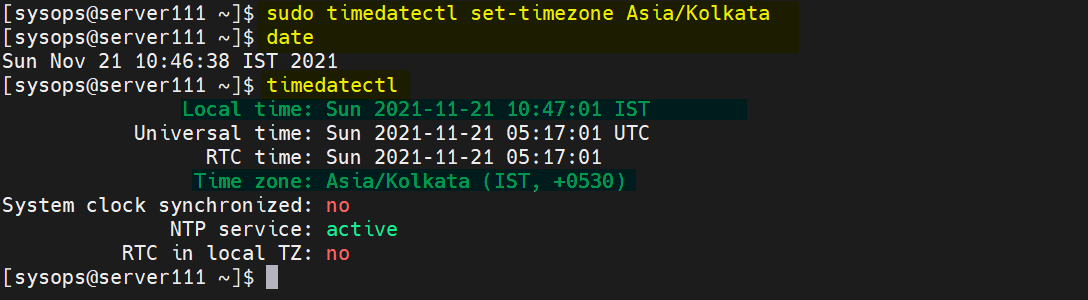
- Check Current Time Configuration Open your terminal and run:
timedatectl status
This command displays the current time settings and whether NTP synchronization is enabled.
- Enable NTP Synchronization If NTP synchronization isn’t active, enable it with:
sudo timedatectl set-ntp true
This command will ensure your system synchronizes with NTP servers automatically.
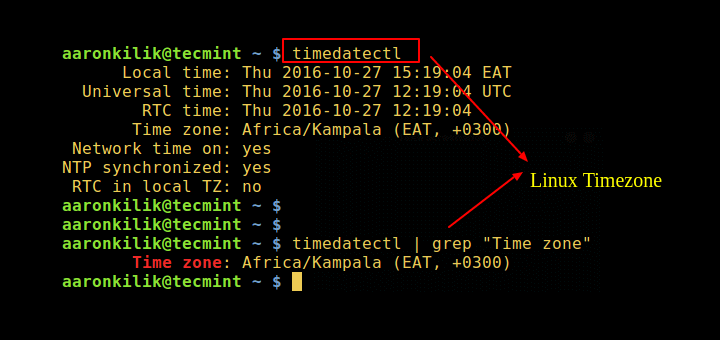
- Verify Sync Status Confirm that NTP synchronization is enabled and check the status:
timedatectl status
Look for “NTP synchronized: yes” to ensure it’s working.
Method 2: Using chrony for Reliable Time Sync
chrony is the recommended time synchronization service for most modern Linux distributions, including AlmaLinux. It provides accurate timekeeping even on systems with intermittent internet connections.
- Install
chronyBegin by installingchronywith:sudo dnf install chrony
- Start and Enable
chronydService Activate and ensurechronydstarts on boot:sudo systemctl start chronyd
sudo systemctl enable chronyd
- Force Immediate Time Sync To immediately synchronize the system clock, use:
sudo chronyc makestep
This forces
chronydto correct the system time without waiting for the next synchronization cycle. - Check Synchronization Status Verify the synchronization status with:
chronyc tracking
This command provides detailed information about the current time synchronization.


Method 3: Using ntpd for Time Sync
For those who prefer the older ntpd service, follow these steps:
- Install
ntpInstall thentppackage:sudo dnf install ntp
- Start and Enable
ntpdService Enable and start thentpdservice:sudo systemctl start ntpd
sudo systemctl enable ntpd
- Sync Time Immediately Force an immediate synchronization with:
sudo ntpdate -u pool.ntp.org
Replace
pool.ntp.orgwith your preferred NTP server if needed. - Verify Synchronization Check the status of
ntpdwith:ntpq -p

Sync Server Time in AlmaLinux This command shows the list of NTP servers and their synchronization status.

Troubleshooting Tips
- Firewall Settings: Ensure that your firewall allows NTP traffic (UDP port 123).
- Network Connectivity: Verify that your server has internet access to reach NTP servers.
- Manual Time Settings: Avoid manually setting the system time as it might interfere with synchronization.