
How to Backup and Restore a Website Using Webuzo Control Panel?
Backup and Restore a Website Using Webuzo Control Panel – Managing your website effectively involves ensuring that you have reliable backups and the ability to restore them if necessary. Webuzo, a popular control panel for web hosting, provides intuitive tools to back up and restore your website data. This guide will walk you through the process of backing up and restoring your website using the Webuzo control panel.
Why Backup and Restore?

Backups are crucial for protecting your website from data loss due to accidental deletions, server failures, or cyber-attacks. Being able to restore your site from a backup ensures minimal downtime and data loss, allowing you to quickly return to normal operations.
Step-by-Step Guide to Backup and Restore Your Website with Webuzo
1. Access the Webuzo Control Panel
- Log In: Open your web browser and go to your Webuzo control panel URL, typically
https://your-server-ip:2002or another URL provided by your hosting provider. - Enter Credentials: Log in with your admin or user credentials.
2. Create a Backup

a. Backup Website Files
- Navigate to Backups:
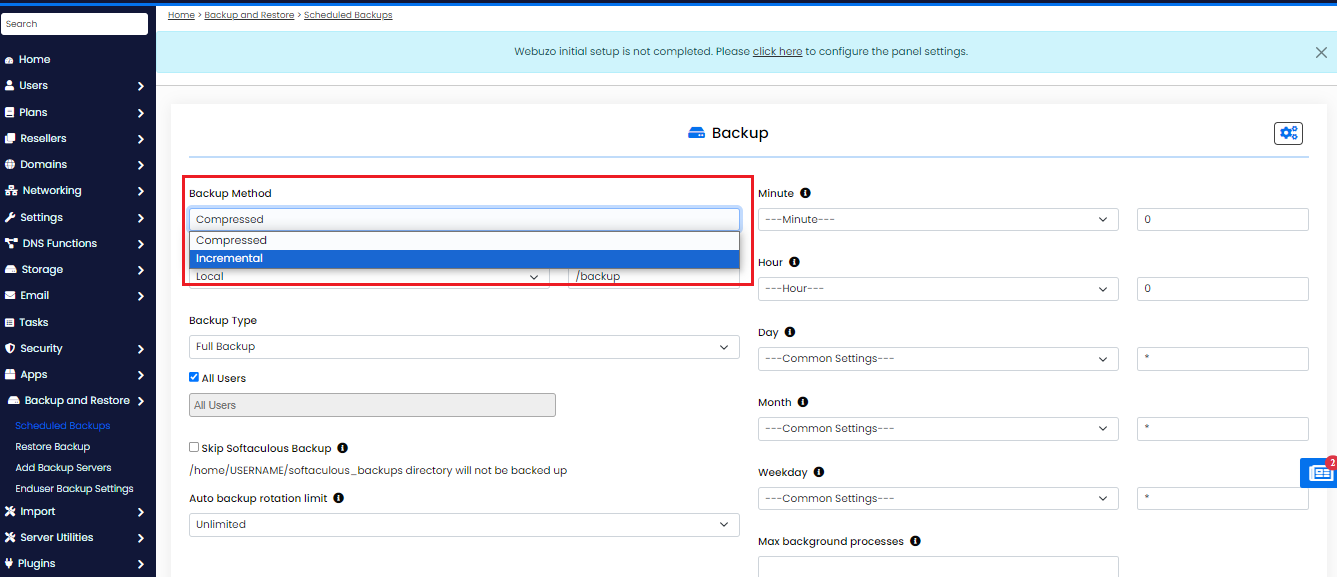
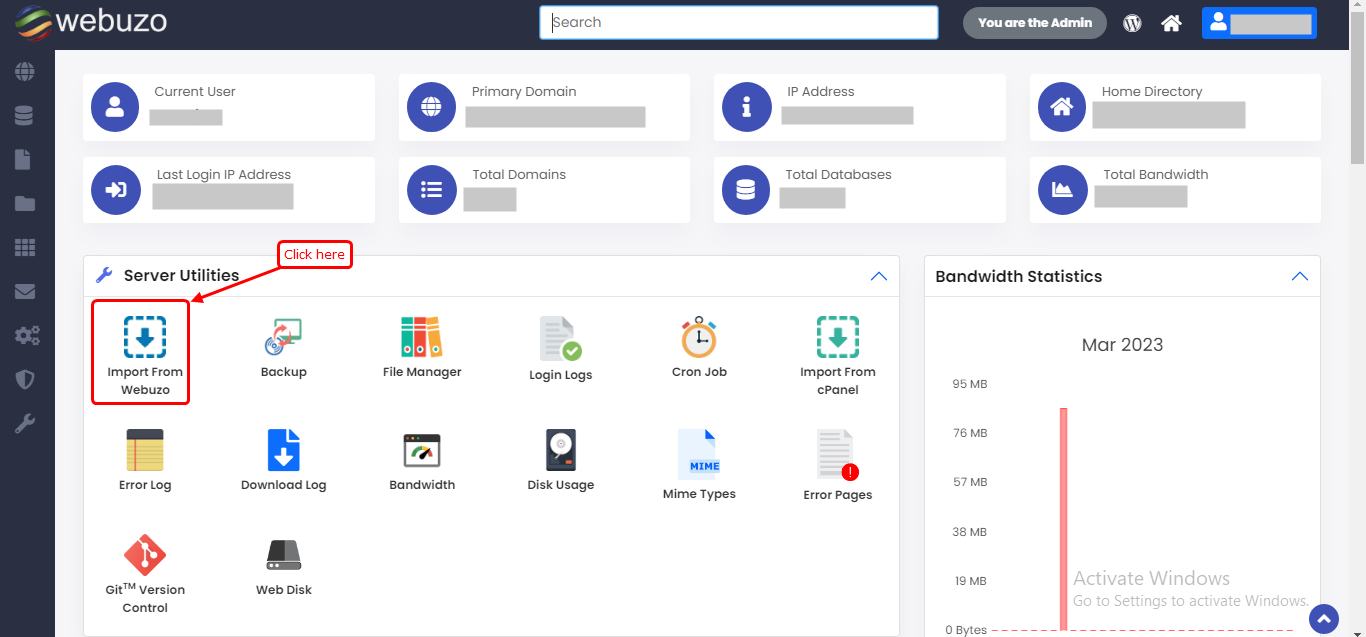
- From the Webuzo dashboard, locate and click on the “Backup” section.
- Choose Backup Type:
- Select “Backup Files” to create a backup of your website files.
- Start Backup Process:
- Click the “Backup” button. Webuzo will start creating a backup of your website files. Depending on the size of your website, this may take some time.
- Download Backup (Optional):
- Once the backup is complete, you might have the option to download the backup file to your local computer for extra safety.


b. Backup Databases
- Navigate to MySQL Databases:
- Go to the “MySQL Databases” section in the Webuzo control panel.
- Select Database:
- Choose the database you want to back up.
- Create Backup:
- Click on the “Backup” option for the selected database. Webuzo will generate a backup file of your database.
- Download Backup (Optional):
- Similar to the file backup, you can download the database backup file to your local system.
3. Restore a Backup
a. Restore Website Files
- Go to Backups:
- Access the “Backup” section again in the Webuzo control panel.
- Choose Restore Option:
- Select “Restore Files” from the available options.
- Upload Backup File:
- Upload the backup file you previously created. Webuzo will start restoring the files from the backup.
- Verify Restoration:
- After the restoration process is complete, check your website to ensure that all files have been restored correctly.
b. Restore Databases
- Navigate to MySQL Databases:
- Go to the “MySQL Databases” section.
- Select Database:
- Choose the database you want to restore.
- Upload Backup File:
- Use the “Restore” option and upload the backup file for the database.
- Verify Restoration:
- After the restore process, verify that the database content is accurate and that your website is functioning as expected.
Tips for Effective Backup and Restoration
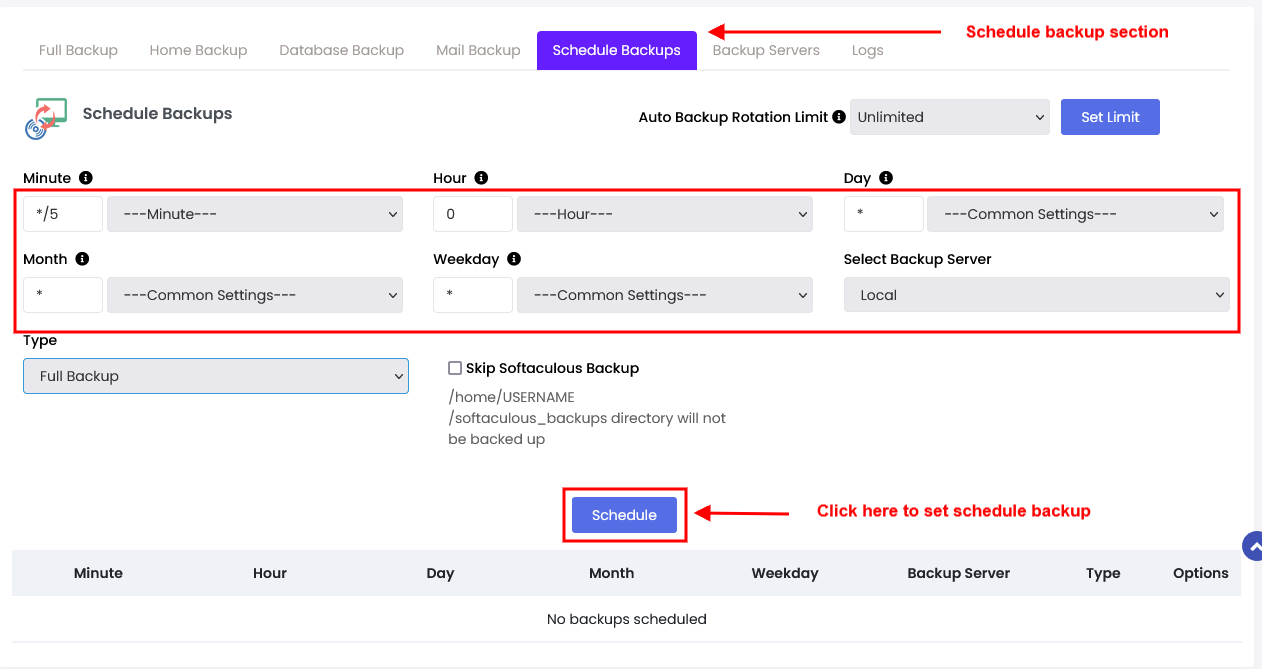
- Regular Backups: Schedule regular backups to ensure that you always have recent data available. Webuzo may offer options for automated backups.
- Store Off-Site: For added security, store backup files off-site, such as on a cloud storage service.
- Test Restorations: Periodically test your backups by performing a test restoration to confirm that your backups are reliable and complete.
Conclusion
Backup and Restore a Website Using Webuzo Control Panel – Backing up and restoring your website using the Webuzo control panel is a straightforward process that can save you from significant headaches if something goes wrong. By following these steps, you ensure that your website data is protected and can be quickly restored in case of emergencies. Regular backups, combined with periodic restoration tests, will keep your website secure and resilient.
If you encounter any issues or need further assistance, Webuzo’s documentation and support team can provide additional help.